maanantai 5. toukokuuta 2014

Simple javascript yes/no prompt and html forward

I needed a simple confirmation YES/NO on my web page which would then redirect to a different page depending on the answer. I couldn't use any other languages but javascript so this is how I acquired it.

First I created a simple button

<button type="button" class="button" onclick="myFunction()">Press me please</button>

and the javascript

<script>
function myFunction()
{
var answer = confirm ("Yes")
if (answer)
window.location.assign("page1.html")
else
window.location.assign("page2.html")
}
</script>

tiistai 26. marraskuuta 2013

HTML 5 Short Page Example

<!doctype html>
<html>
<head>
<title>Niki's HTML 5 Short Page</title>
<meta charset="utf-8" />
</head>
<body>
<h1>Niki's HTML 5 Short Page</h1>
<p>Welcome!</p>
</body>
</html>


Test your valid HTML 5 page with validator.w3.org. Start coding from this "Hello World" template.

torstai 17. lokakuuta 2013

Java - Hello World with Eclipse Quickly

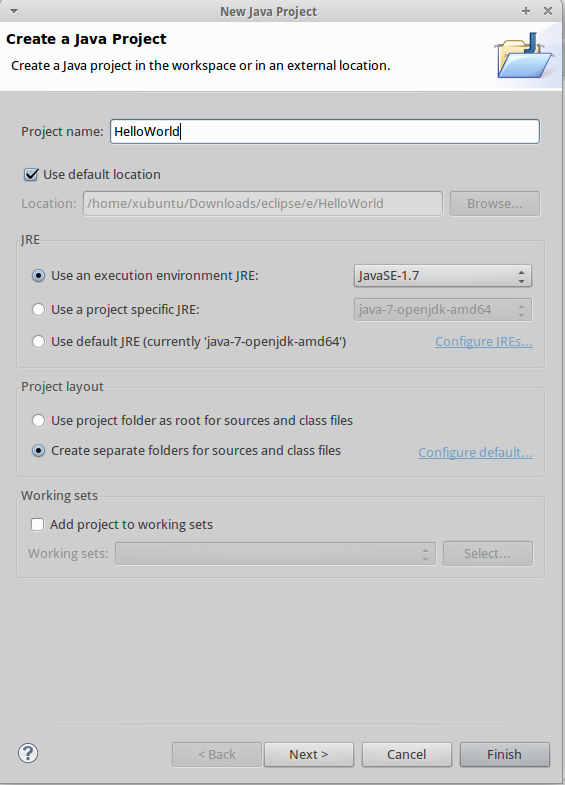
Open Eclipse and create new "Java Project"
Give a name for your project

Click Finish

Create new class inside src folder

Write "main" inside hello and press CTRL + SPACE and ENTER to autocomplete

public class Hello {
    main 
}


public class Hello {
    public static void main(String[] args) {
       }
 }

write "syso" and press CTRL + SPACE
then add print text


public class Hello {
    public static void main(String[] args) {
        System.out.println("Hello World!");
    }   
}


 It prints Hello World! to Console.

TIPS: to install JDK on Linux:  sudo apt-get install openjdk-7-jdk

keskiviikko 2. lokakuuta 2013

How To Use CVS-VersionControl (School notes)

How to pull existing project from CVS:
Start Eclipse

Notice that only one person in team pushes the project into workspace and then other team members pull the project from cvs.

Select File -> New -> Project
and select CVS - Projects from CVS


From the next window select existing project.


Location:
Host: proto999.haaga-helia.fi // 999 change this to your own group number
Repository path: /home/cvs
Authentication
user: accountname
password: your pw
Connection
Connection type: extssh
click next
Enter Module Name:
choose use an existing module
select the project you want and click finnish

How to push
Right click your project, first select update and then commit


Creating new project:
Simply right click again your project, select team menu and choose share project.


torstai 26. syyskuuta 2013

Eclipse cannot create server problem and delete server

If you ever run to this problem that you cannot add Tomcat server to your Eclipse it is very easy to fix.


Go to Window–>Preferences–>Server–>Runtime Environments click edit and fix the broken path/link for the server. (Locate the Tomcat folder you have unzipped)


After that it should work.

Delete server

Right click servers from the left side menu, select delete and tick box delete from disk. Also from the bottom view of eclipse select servers and delete them there.


maanantai 23. syyskuuta 2013

SQL Zoo

Good page to train your SQL skills: http://sqlzoo.net/wiki/Main_Page

torstai 19. syyskuuta 2013

MySQL From Command line

If you have set up or you are going to use MySQL with SSH for example not via PHPMyadmin open your terminal and type

mysql -u username -p

Which means go to mysql, after -u put your username and -p is password, but do not enter your password after that it is going to ask it in the next prompt.

Enter your password (if you are using Putty press SHIFT + INSERT to paste)

Create new database:

CREATE DATABASE Niki_Aanitteet;

To select database you want to use insert

use databasename;

to see what tables you have type

show tables;


To see what you have in the tables type

select * from tablename;


As you can see it works with same commands as phpmyadmin. If you want to add a table here is my example code:

CREATE TABLE Niki_Aanitteet(
id SMALLINT NOT NULL AUTO_INCREMENT PRIMARY KEY,
artisti VARCHAR(255) NOT NULL,
levyn_nimi VARCHAR(255) NOT NULL
) ENGINE=Innodb DEFAULT CHARSET=latin1;

And to insert some data into the tables:

INSERT INTO Niki_Aanitteet(artisti, levyn_nimi) VALUES('PSY', 'Gangnam Style');
INSERT INTO Niki_Aanitteet(artisti, levyn_nimi) VALUES('Train', 'Drive By');
INSERT INTO Niki_Aanitteet(artisti, levyn_nimi) VALUES('Rihanna', 'Where Have You Been');

To see field, type, null, key, default, extra information type:
describe Niki_Aanitteet;

Create new user for your database and grant all privileges:

CREATE USER 'shnigi'@'localhost' IDENTIFIED BY 'passwordhere';

GRANT ALL PRIVILEGES ON * . * TO 'shnigi'@'localhost';

Explained bit better here: https://www.digitalocean.com/community/articles/how-to-install-wordpress-with-nginx-on-ubuntu-12-04

create database testdatabase;
create user 'folio'@'localhost' identified by 'password123';

grant all privileges on testdatabase.* to 'folio'@'localhost' with grant option;